Loved by Creators
AutoFlow is trusted by 3,750+ video directors, agencies, and creators worldwide who have automated over 380,000+ prompts and downloaded 315,000+ 4K videos.
"AutoFlow Studio completely revolutionized our agency workflow. Being able to lock character faces and wardrobe across consecutive cuts without API fees is unprecedented."
"I loaded 350 prompts before going to bed. Woke up to all renders cleanly completed and bulk downloaded in 4K. It literally saved me 15 hours of manual clicking."
"Connecting ChatGPT script ideation directly into Google Veo and Grok video extensions on one canvas is pure genius. Best $9.99/mo tool in AI right now."
Five Tools.
One Platform.
Each does one job well. Start with the one you need — they share one account and one Pro plan.
AutoFlow Queue Manager
Batch-generate hundreds of prompts in Google Flow.
- Paste 5, 50 or 500 prompts at once
- Retries failed generations for you
- Bulk-downloads every video in 4K
AutoFlow Studio
Plan multi-shot videos on a visual node canvas.
- Connect prompts, images and generators
- Keeps characters the same across shots
- Chains each last frame into the next shot
AutoFlow Motion
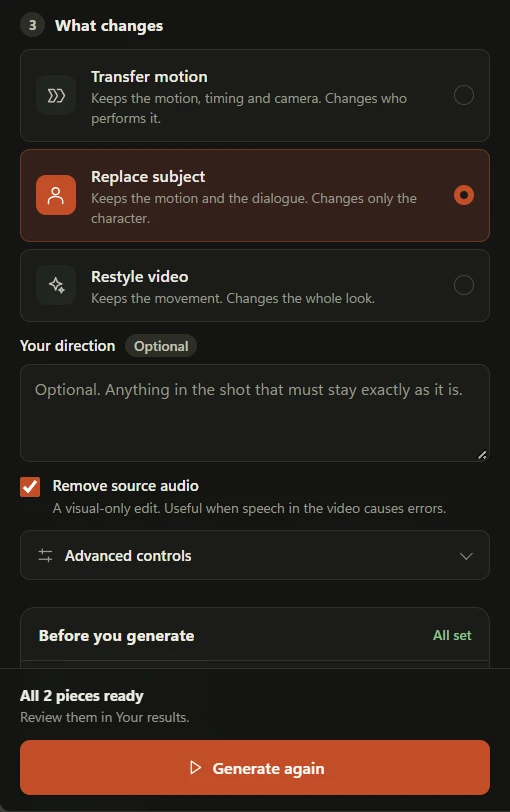
Give any video's motion to your own character.
- Keeps the movement, timing and camera
- Swap the subject or restyle the whole look
- Free: 3 jobs a day · Pro: unlimited
AI Video Prompt Extractor
Get the prompts behind any AI video.
- Upload a video or paste a link
- Get each shot's prompt and camera moves
- Send the result to Studio in one click
AI Clip Maker
Turn a long video into short clips.
- Drop a podcast, stream or interview
- Get vertical 9:16 clips cut on the spoken line
- Captioned, with an edit sheet
Which Tool
Do I Need?
From Idea to
Finished Clips
Use one tool on its own, or chain them from first idea to final clip.
Extract
Find the prompts and camera moves behind a video you like.
Plan
Lay out your shots and characters on a visual canvas.
Generate
Run every prompt in Google Flow, or move a real performance onto your character.
Clip
Turn long videos into short vertical clips for every platform.
Start Free.
One Pro Plan for Everything.
- Queue Manager: 50 prompts a day
- Studio: 10 workflow runs a month
- Motion: 3 jobs a day
- Extractor and Clipping: free web apps
- Unlimited Queue Manager prompts
- Unlimited Studio runs
- Unlimited Motion jobs
- 20 extractions a day
Start with the job in front of you. Many prompts to generate: the Queue Manager. A multi-shot story with the same characters: Studio. A video whose movement you want on your own character: Motion. The prompts behind a video you saw: the Extractor. Short clips from a long recording: Clipping. They share one account and one Pro plan, so you can add the others later.