Ever seen a viral AI-generated video and wondered exactly what prompts the creator used? With the Video Prompt Extractor, you can reverse-engineer any MP4 or WebM video to reveal its hidden Image Prompts (Midjourney) and Video Motion Prompts (Runway/Sora).
But extracting the prompts is only half the battle. In this tutorial, we will show you how to seamlessly export those extracted prompts directly into the AutoFlow Chrome Extension to automatically batch-generate the entire scene timeline in minutes.
Step 1: Generate Characters (Example: Nano Banana 2)
First things first: when the Extractor analyzes a video, it generates Character Design Sheets. You need to generate your character reference images first.
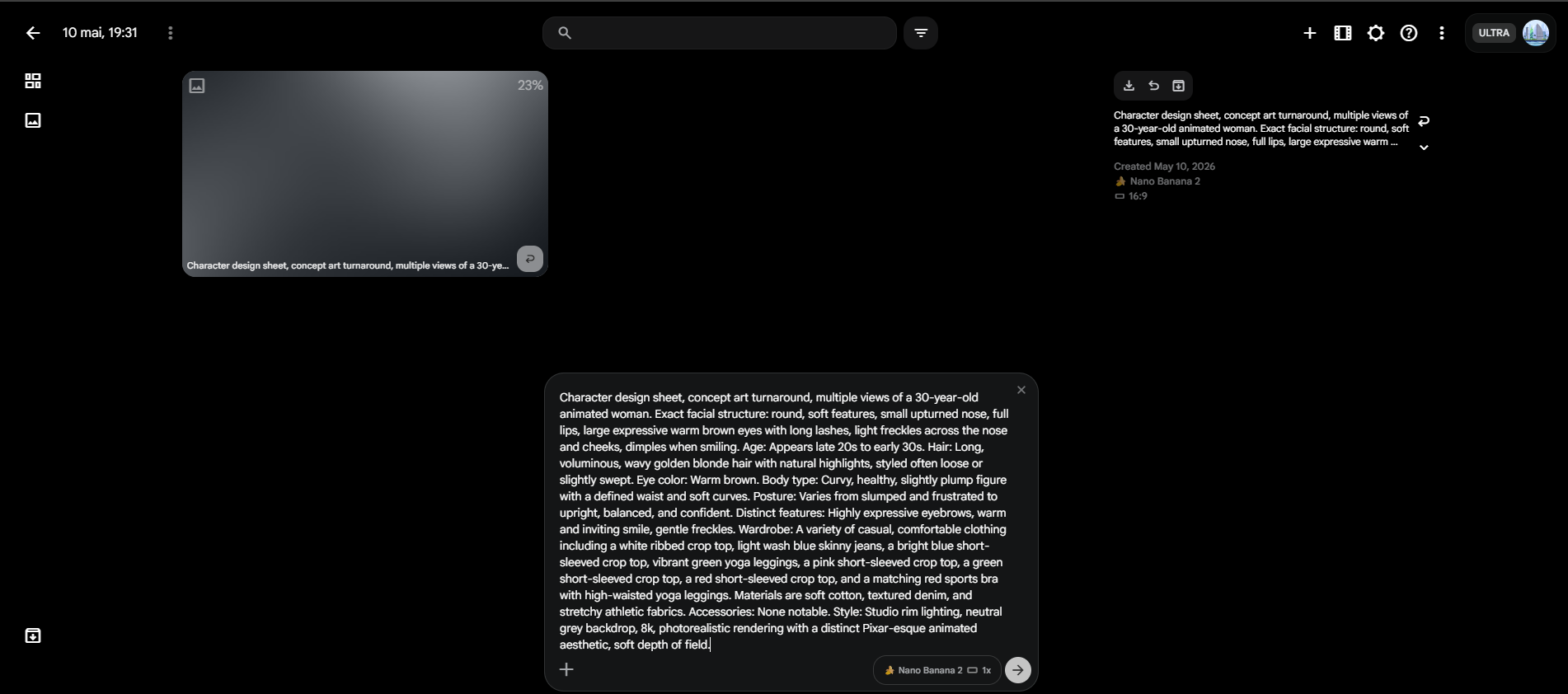
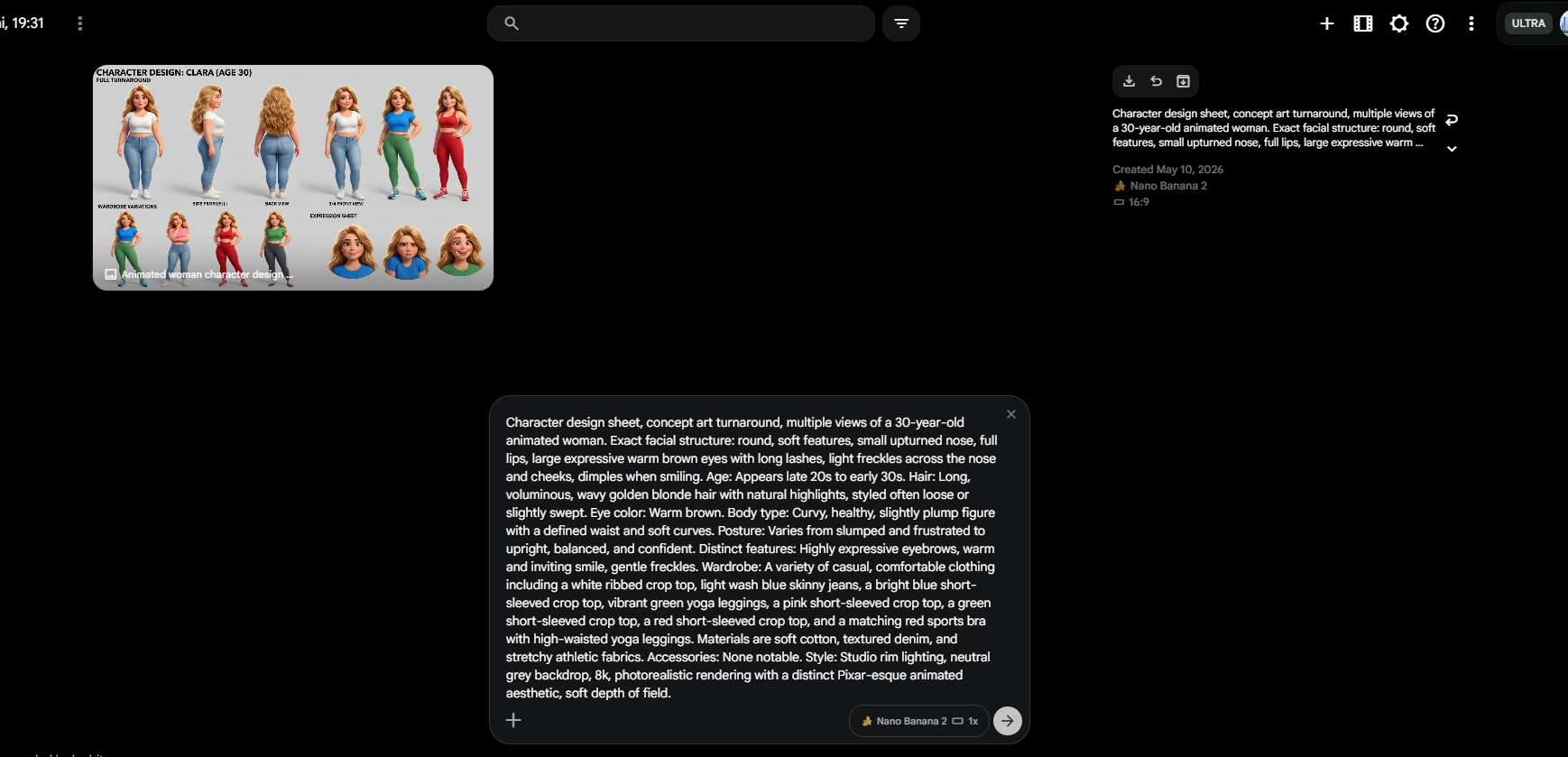
Copy the character prompt from the Extractor and generate your reference image.CRITICAL STEP: Once generated, you must name the character and the image with the exact same name (e.g., Nano Banana 2). This is required for the Auto Character Mapping feature to work later!
Step 2: Batch Generate Images
After generating your character, scroll down to the new Export for AutoFlow Extension section on the Extractor page. Click Copy All Image Prompts.
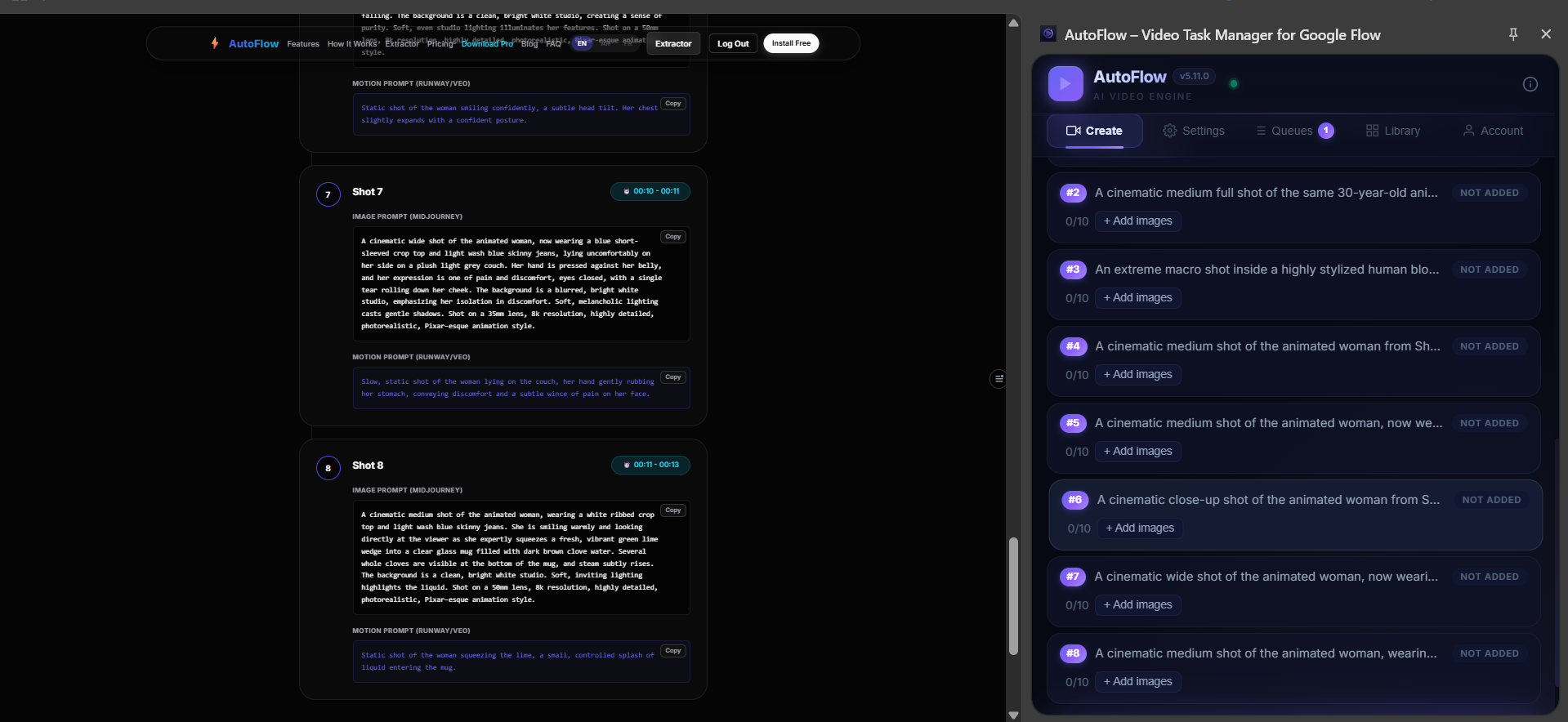
Open the AutoFlow extension, go to the Create tab, and paste the entire list of prompts. Click Parse Prompts.
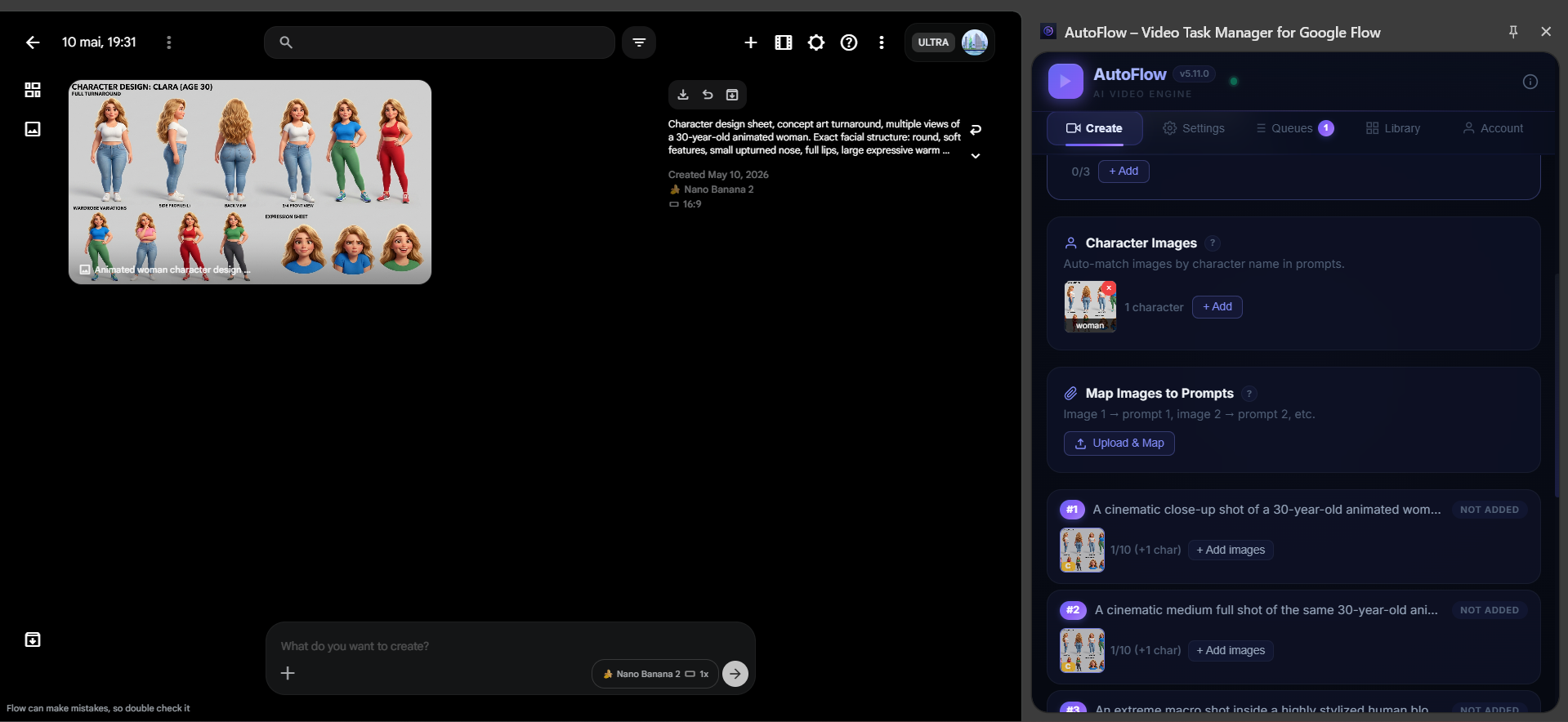
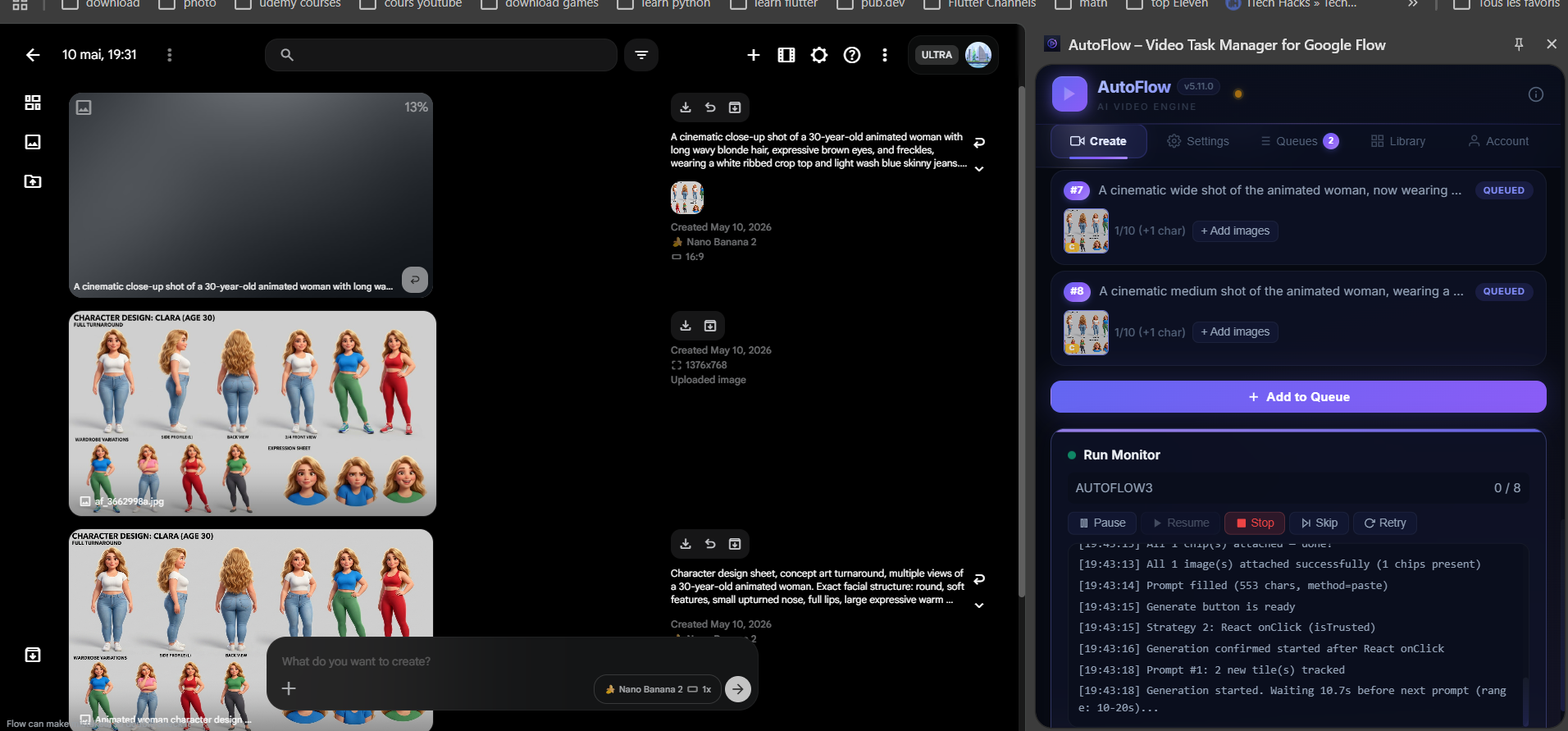
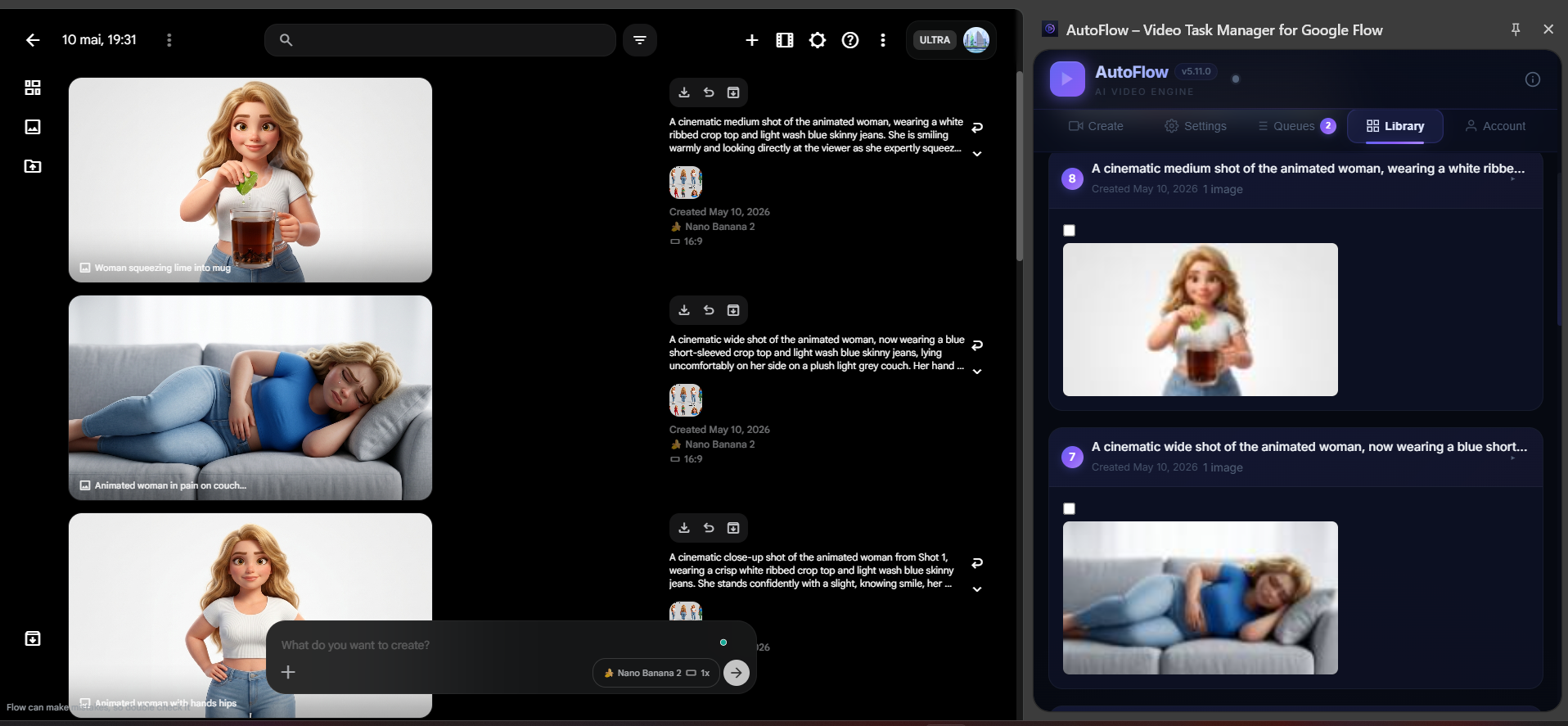
Let AutoFlow generate all the Midjourney/ImageFX images automatically. Once they are done, batch download them to your computer.
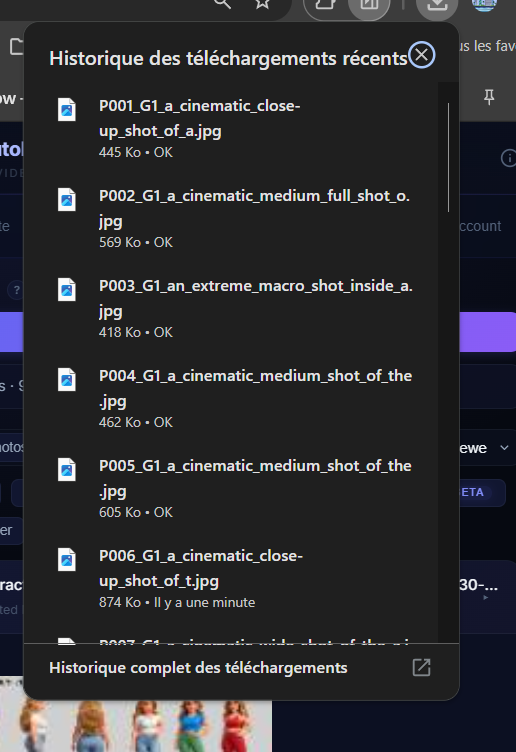
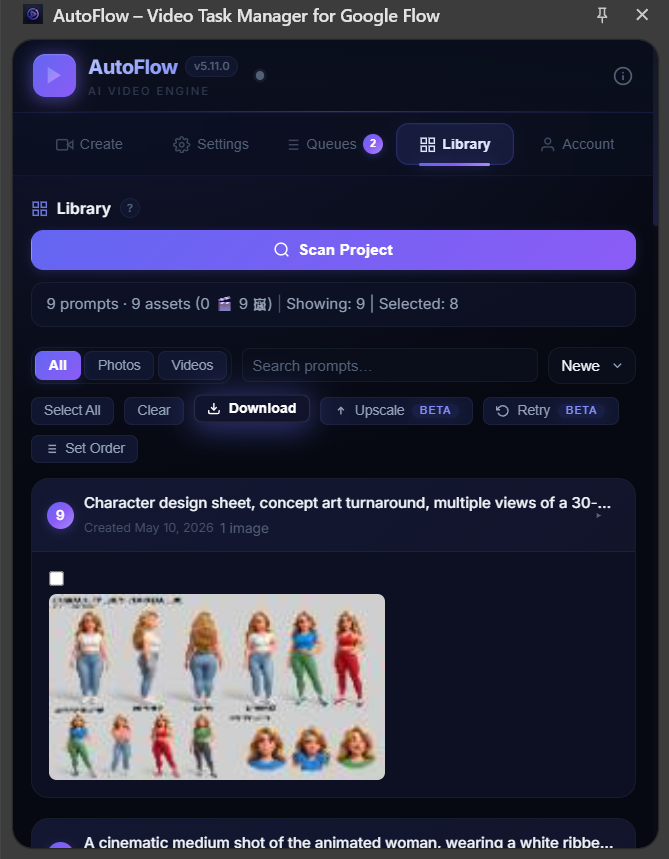
Step 3: Auto Character Mapping
Now it's time to turn those static images into a video timeline. In the AutoFlow extension, click on Ingredients and then Settings to open your video configuration.
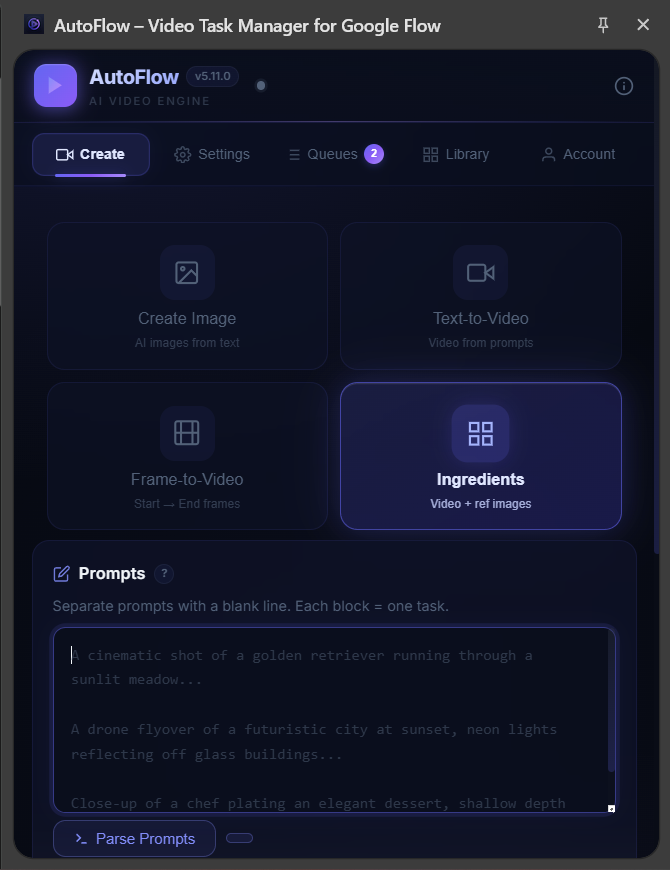
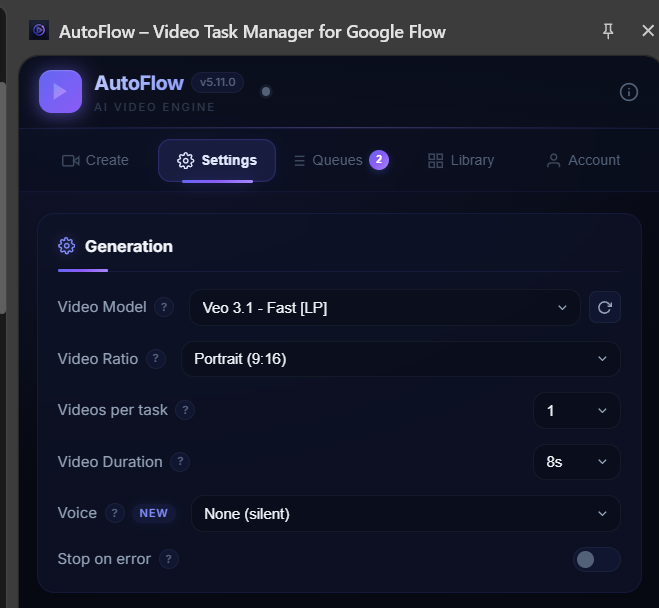
Go back to the Extractor website and click Copy All Video Prompts. Paste these into the extension's Video Prompts section.
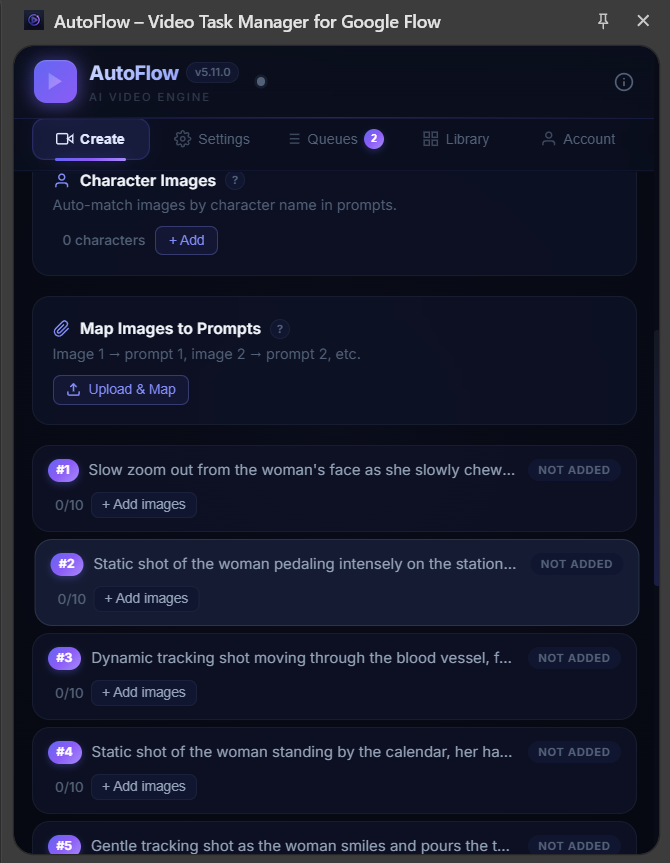
Here is where the magic happens: click on the Mapping button in the extension. Because you named your reference images exactly the same as the characters in the prompts, AutoFlow will automatically assign every reference image to the correct video prompt!
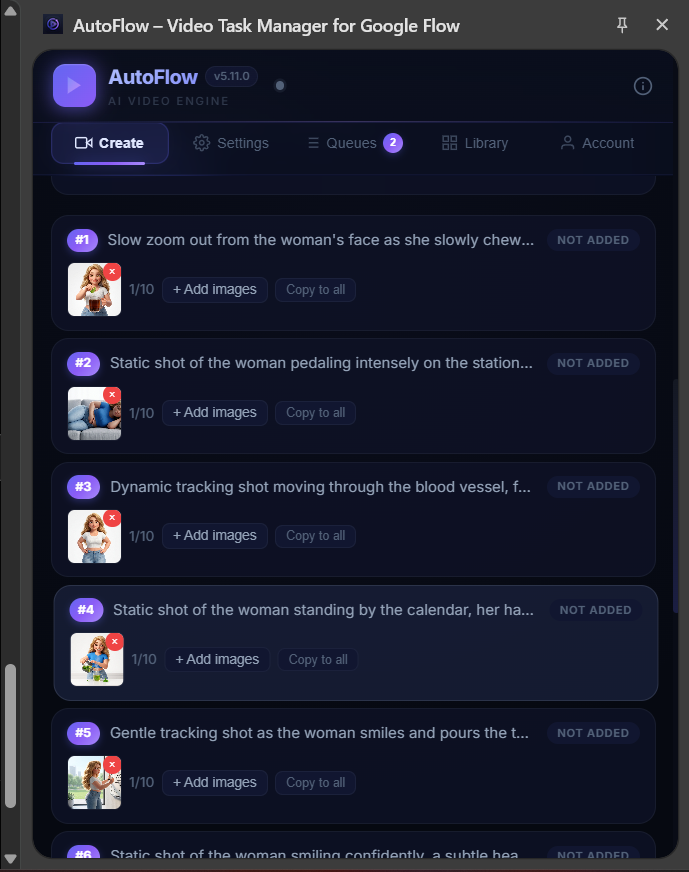
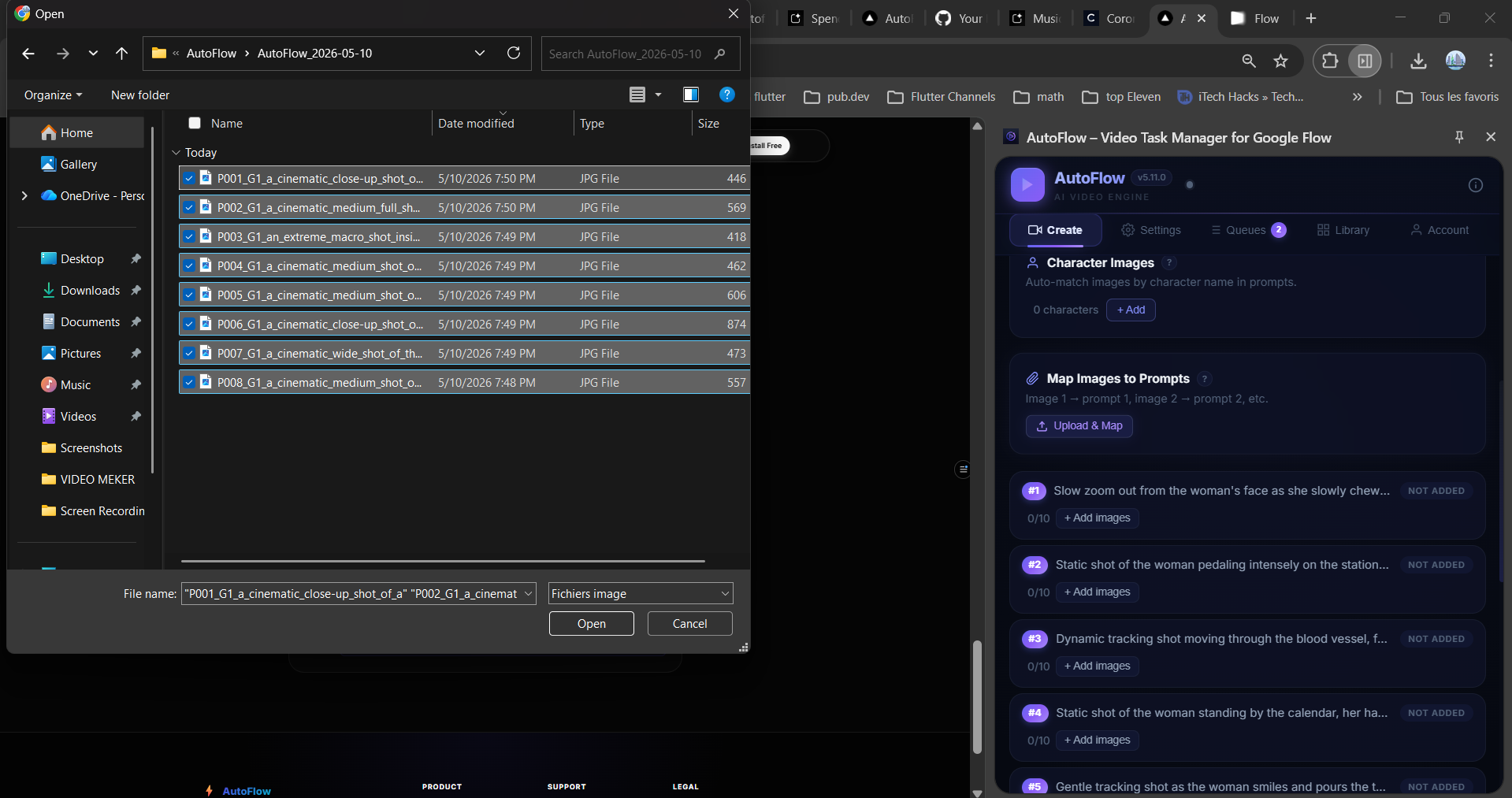
Step 4: Image to Video & Auto-Queue
With your images mapped to your video prompts, simply click Add to Queue.
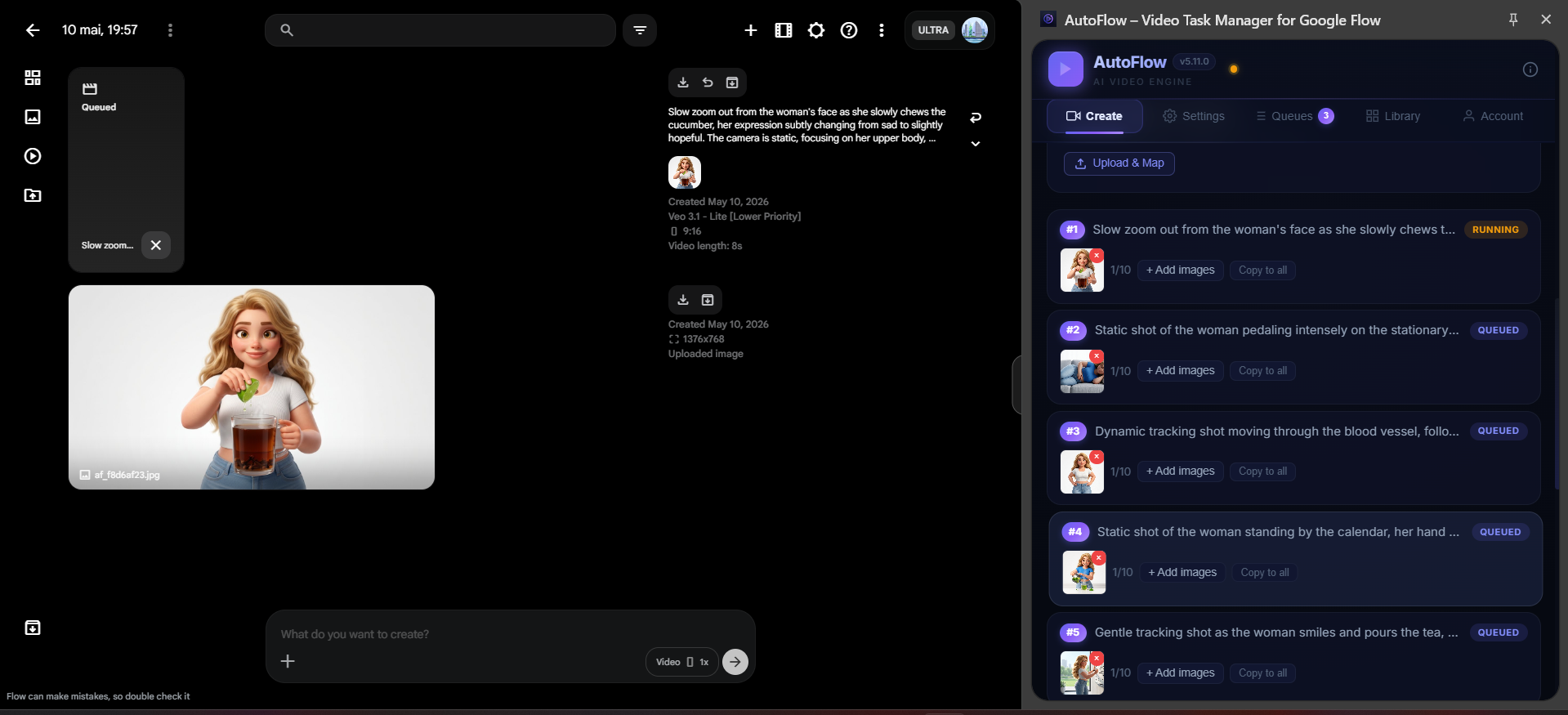
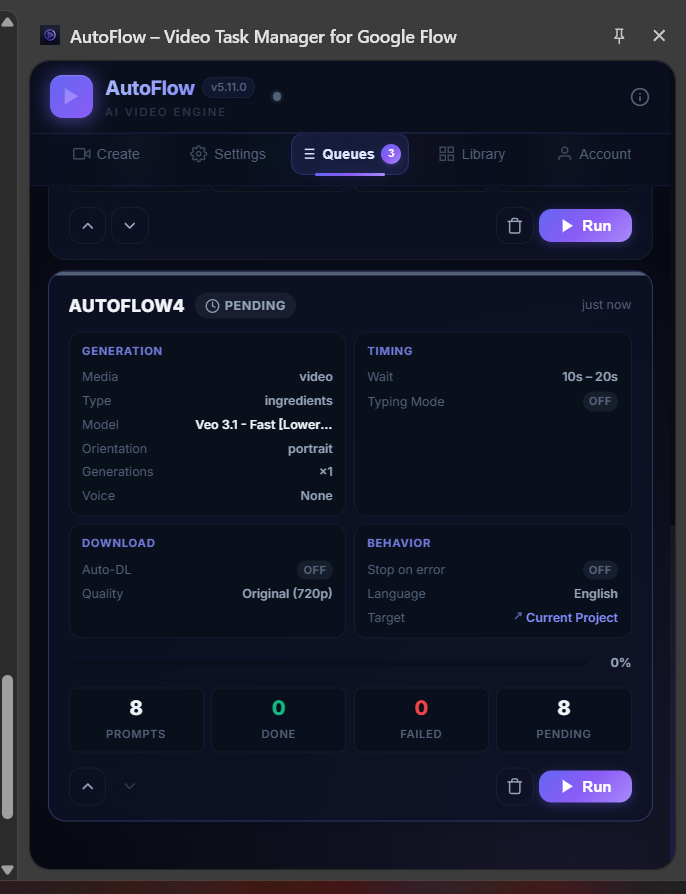
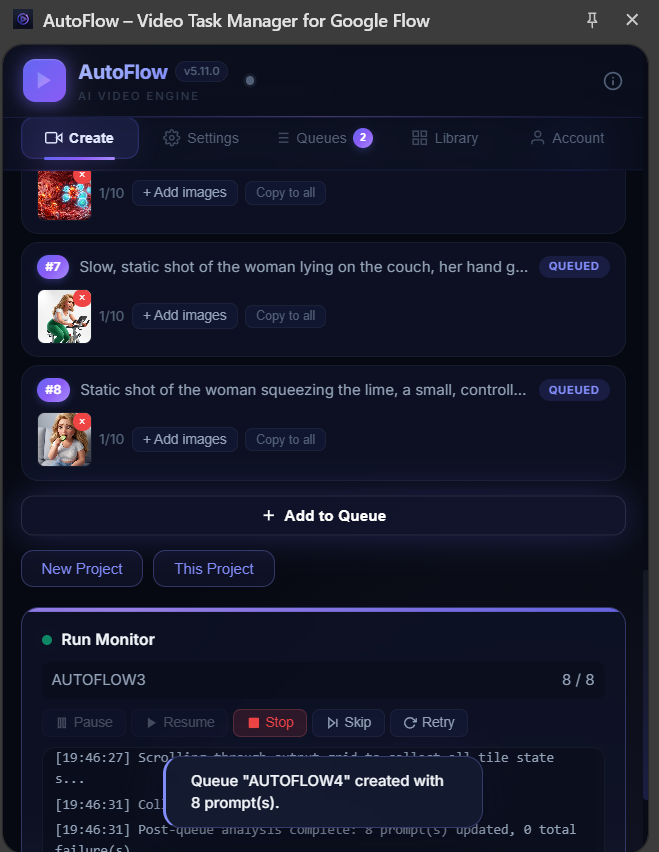
AutoFlow will now take over your browser, automatically uploading the reference images to Google Flow / Runway, pasting the motion prompts, and generating the final videos one by one.
Congratulations! You have just successfully reverse-engineered a viral AI video and recreated the entire timeline on autopilot.